
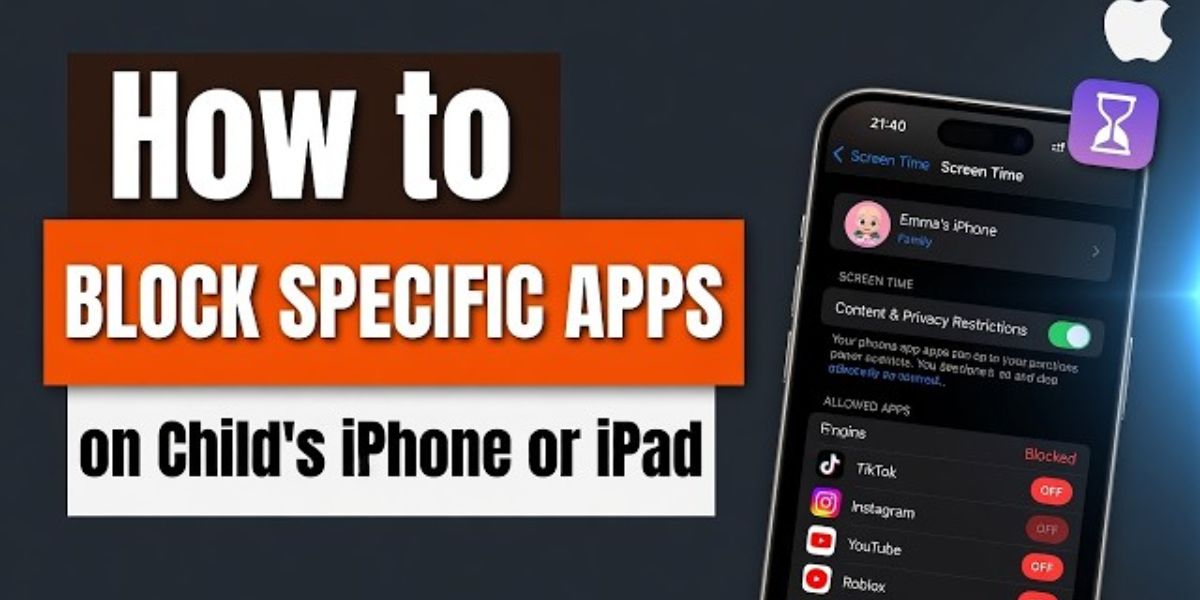
American adults now spend over seven hours daily on screens, highlighting a growing need for tools that go beyond basic settings to strictly block app usage on iPhones. This guide details how to configure Apple’s built-in Screen Time for strict app blocking, explore third-party blockers like ScreenZen and AppBlock, and understand statistics on screen time habits. You will learn how to disable the ability to ignore app limits entirely.
Mastering iPhone’s Built-in App Blocking Capabilities
Configuring ‘Downtime’ for Strict Blocking
Apple’s built-in Screen Time feature allows for comprehensive app blocking during specific periods. By configuring Downtime settings, users can set schedules to restrict access to applications entirely when not actively in use.
To ensure apps are completely inaccessible, it’s crucial to enable ‘Block at Downtime’ within the Downtime settings. This setting ensures that once the scheduled downtime begins, apps become unusable without any option to extend the session.
Preventing Children from Bypassing Limits
A common challenge with Screen Time is children extending app limits, negating their purpose. To prevent this, users can adjust settings to remove the option to bypass limits. This involves ensuring that ‘Ignore Downtime until schedule’ is turned off.
When ‘Ignore Downtime until schedule’ is off, and ‘Block at downtime’ is enabled alongside a set schedule, the iPhone will enforce the app limits strictly. This configuration removes the familiar buttons that allow for minute-by-minute extensions of app usage time.
Understanding Screen Time Extension Options
The ability for users, particularly children, to select options like ‘Extend by 1 minute’ or ‘Extend by 15 minutes’ is a key reason why basic Screen Time limits often fail. Turning off features that allow for these extensions is vital for enforcing true app blocking.
Parents can disable these options by ensuring that ‘Ask for More Time’ is set to ‘Off’ within the Screen Time settings, specifically under the ‘Content & Privacy Restrictions’. This action removes the extension prompts entirely.
Leveraging Third-Party App Blockers
ScreenZen: A Minimalist Approach to App Blocking
For those seeking a more minimalist approach than Apple’s built-in features, applications like ScreenZen offer a focused method. ScreenZen requires users to consciously decide to bypass its blocks, introducing a moment of friction designed to reduce casual app usage.
This intentional delay serves as a cognitive barrier, encouraging users to reconsider opening an app they’ve chosen to restrict. ScreenZen’s effectiveness lies in making users pause and evaluate their app habits before diving back in.
AppBlock: Customizable Blocking for Enhanced Digital Wellbeing
AppBlock provides another layer of customization for iPhone users aiming for better digital wellbeing. This app allows for the creation of custom blocking profiles, enabling users to block specific apps or entire categories of applications during defined periods.
AppBlock’s flexibility permits users to set up different blocking rules for work hours versus personal time. This granular control helps users limit screen time effectively across various aspects of their day.
Screen Time Habits and Statistics
The Scope of Daily Screen Engagement
Studies show that the average American adult spends over seven hours daily on screens. This pervasive engagement underscores the necessity of robust app-blocking strategies beyond simple timers.
Understanding these statistics can motivate users to implement stricter measures. The ingrained nature of screen usage highlights why features that truly block apps are essential for reclaiming time and attention.
Effectiveness of Strict App Blocking
Implementing strict app blocking, whether through built-in iOS features or third-party applications, can significantly impact daily screen time. By removing the ease of bypassing limits and introducing friction, users can develop healthier digital habits.
The ultimate goal is to regain control over device usage. By mastering iPhone’s Screen Time settings or utilizing specialized apps, users can effectively limit screen time and improve their overall digital wellbeing.


