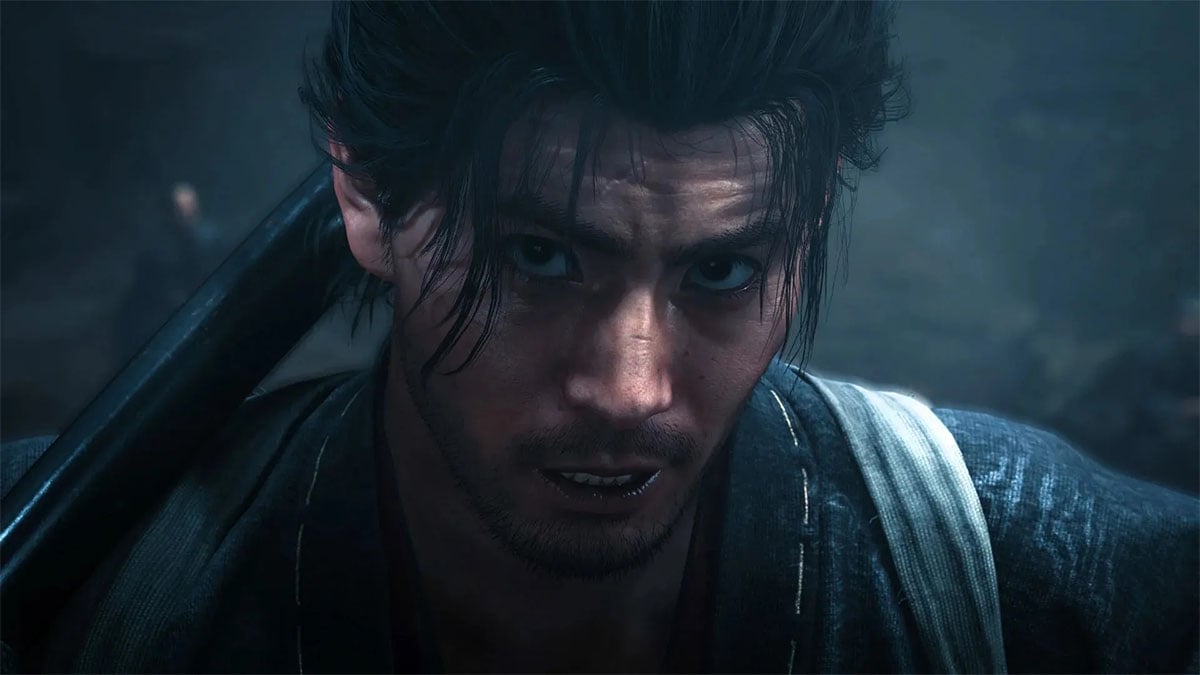
Achieving the best performance in Onimusha: Way of the Sword on PC involves adjusting specific graphics settings. By carefully tweaking options, players can minimize lag and maximize frame rates, ensuring a smoother combat experience against the Genma. This guide outlines the recommended settings.
Optimizing Graphics Settings for Performance
To achieve the best possible performance and minimize lag in Onimusha: Way of the Sword, several in-game settings can be adjusted. If you possess a high-powered PC, setting most graphics options to Medium or High should yield good results. However, it is strongly recommended to cap the frame rate at 60 FPS.
This frame rate cap made a significant difference in performance on my end and ensures a consistent experience, which is ideal for a title not focused on competitive play.
My testing setup included an AMD Ryzen 7 5700X CPU and an AMD Radeon 9060XT GPU with 16 GB of VRAM, paired with 32 GB of DDR4 RAM.
For optimal visuals and fluidity, ensure your resolution is set to your monitor’s native setting. While Vsync can help with screen tearing, it’s best to keep it off initially to avoid introducing input lag. If you still experience stuttering after these adjustments, you can re-enable Vsync.
| Setting | Recommendation |
|---|---|
| Frame Rate Cap | 60 FPS |
| Upscaling | Off (Performance if underpowered PC) |
| Upscaling Sharpness | 50%/60% |
| Texture Quality | Low |
| Shadow Quality | Low |
| Ambient Occlusion | Low |
| Screen Space Reflection | Medium |
Understanding Game Pace and Controls
Onimusha: Way of the Sword is not designed as a fast-paced First-Person Shooter or a competitive title. This allows players to engage with the game at their own pace, focusing on the narrative and combat without undue pressure. The game’s tempo is unhurried, inviting exploration and strategic engagement with enemies.
The default control scheme for Onimusha: Way of the Sword is quite distinctive. Using PlayStation button nomenclature, the primary attack buttons are mapped to Triangle and Circle. This differs from the more traditional setup where Square and Triangle often handle attacks.
The Square button is dedicated to defensive maneuvers, including blocking, parrying, and deflecting enemy attacks. For those who prefer a more familiar layout, an alternative control scheme is available. This option reassigns the block function to L1, while the face buttons revert to a more traditional mapping for attacks.
Cosmetic Customization and Progression
In Onimusha: Way of the Sword, players can alter the visual appearance of their swords through the “Change Appearance” option. This feature is accessible via the Spirit Mirror menu found within the game. Sword appearances are purely cosmetic and do not impact gameplay mechanics or Miyamoto Musashi’s combat effectiveness.
Charms play a significant role in strengthening Miyamoto Musashi’s abilities. These items can be equipped and managed on the Equipment screen, which is available during gameplay. Equipping the right combination of charms can provide passive buffs and enhance combat prowess.
Both sword appearances and charms are unlocked as the player progresses through the game. Spirit Mirrors and the “Change Appearance” function become available after certain in-game milestones. These customization options allow for a personalized player experience without affecting the core difficulty or balance of the game.
Key Graphics Settings Recommendations
For players aiming for a balance between visual fidelity and smooth gameplay in Onimusha: Way of the Sword, several graphics settings warrant particular attention. While a high-end system can handle higher settings, capping the frame rate at 60 FPS is crucial for consistency.
Keeping the frame rate uncapped can lead to inconsistent performance and potential stuttering. Vsync should generally be disabled to prevent input lag, though it can be enabled as a last resort if lag persists.
Upscaling should be turned off unless you are playing on an underpowered PC, in which case the Performance mode should be selected.
For texture settings, opt for Low Texture Quality paired with Medium Texture Filtering Quality. This combination offers a reasonable visual appearance without an excessive performance cost. Similarly, settings like Sky/Cloud Quality, Foliage Quality, and Cull Distance should be set to Low to maximize frame rates.
Shadow Quality and Ambient Occlusion should also be set to Low. While these can enhance visual depth, they are often performance-intensive. Bloom and Motion Blur should be turned off. Screen Space Reflection can be set to Medium, and Volumetric Fog Quality should remain at Low.
Frequently Asked Questions
What are the key hardware specifications recommended for Onimusha: Way of the Sword?
For optimal performance in Onimusha: Way of the Sword, an AMD Ryzen 7 5700X CPU and an AMD Radeon 9060XT GPU with 16 GB of VRAM are recommended, alongside 32 GB of DDR4 RAM.
How can I improve frame rates in Onimusha: Way of the Sword?
To improve frame rates, cap the game at 60 FPS, set Texture Quality and Shadow Quality to Low, and disable settings like Bloom and Motion Blur. Using Upscaling on an underpowered PC in Performance mode can also help.
Are sword appearances in Onimusha: Way of the Sword purely cosmetic?
Yes, sword appearances in Onimusha: Way of the Sword are purely cosmetic items. They change the visual look of Miyamoto Musashi’s sword but do not affect his performance or abilities in combat.
What is the recommended screen mode for Onimusha: Way of the Sword?
If you are using multiple monitors, Borderless Windowed mode is recommended for Onimusha: Way of the Sword. If you have a single monitor, Fullscreen mode is generally preferable for performance.
As balance patches are released, players should expect these numbers and settings to change. Adjustments to graphics settings may be necessary to maintain optimal performance with future updates.