
The Nvidia Shield is one of the most powerful Android TV devices available today. With exceptional processing power, native support for 4K streaming, and seamless gaming integration, it’s no surprise that enthusiasts continually look for ways to expand its capabilities beyond the default Android TV experience.
If you’ve ever wished to install apps not found on the Google Play Store or to fine-tune your system’s performance, you’re in the right place.
This guide walks you through how to safely enable developer settings, install a sideloading tool, and responsibly explore a wider range of apps—without compromising your device security or breaching content laws.
Let’s get started.
1. Preparing Your Nvidia Shield
Before you install anything new, it’s important to understand what you’re doing at a system level. The process often referred to online as “jailbreaking” the Nvidia Shield is technically about enabling developer options and allowing sideloading (installing apps from outside the Play Store). It doesn’t involve deep rooting or system modification that might void your warranty.
Here’s how to begin:
- Turn on your Nvidia Shield and go to the home screen.
- Navigate to the Settings menu. The quickest method is to move to the top-right gear icon and select it using your controller or remote.
- Choose Device Preferences, then scroll down to About.
- At the very bottom of the About screen, select Build.
- Press the center button on your remote seven times.
- A message will pop up saying, “You are now a developer.”
At this point, your Shield now has Developer Options unlocked. This step doesn’t modify your OS—it simply exposes additional system controls and allows installation from unknown sources later on.
2. Installing a File Downloader
The next step is to get a tool that lets you directly download apps from the internet. The most popular choice for this is an app simply called Downloader, which is freely available in the Google Play Store.
Here’s how to install it:
- From your home screen, open the Google Play Store.
- Move to the Search icon and type “Downloader.”
- When it appears (usually as an orange icon), select it and press Install.
- Once installation completes, select Open.
The Downloader app acts like a web browser optimized for Android TV, letting you visit websites and download APK files directly onto your Shield. Think of it as the bridge that connects your Nvidia Shield to the broader Android ecosystem.
3. Granting Permissions for Sideloading
Once inside Downloader, you may see a warning stating that installation from “unknown sources” is blocked. This is a standard Android protection feature, not an error.
To fix it, follow these steps:
- When prompted, select Settings.
- Scroll to Security & Restrictions → Unknown Sources.
- Enable the toggle for Downloader to allow installations from this app.
Now, Downloader can install apps you obtain legally from reputable sources.
4. Accessing Safe Third-Party App Sources
While some third-party “stores” can contain unsafe or pirated content, not all outside apps are illegitimate. Many developers host beta versions, specialized streaming apps, emulators, and utilities outside of Google Play for various reasons.
If you want to explore third-party apps responsibly:
- Stick to well-known sources such as APKMirror, F-Droid, or GitHub projects.
- Avoid any site or store promising “free access” to paid movies, pay-per-view sports, or commercial TV channels—these violate content laws and could expose you to malware.
- Always scan APKs with a service such as VirusTotal before installation.
By entering a legitimate URL in Downloader and selecting the on-screen arrow, you can navigate to these sites, download an APK, and install it just by selecting Install once prompted.
5. Managing Permissions and Storage
Once you’ve installed your chosen apps, you’ll notice that each new app requests different permissions (like access to files, photos, or the internet).
To maintain control:
- Go to Settings → Apps → See All Apps → [App Name] → Permissions.
- Disable any unnecessary access, especially those requesting camera or microphone use.
Also, since sideloading can consume extra space, you can delete temporary installation files:
- Navigate back to Downloader.
- Highlight the downloaded file.
- Select Delete twice to confirm.
With these steps, your Shield stays clutter-free and secure.
6. Recommended Utilities to Install
Below are a few reliable and widely recommended apps that extend the Shield’s capabilities without venturing into unethical territory:
- Kodi – A customizable media player great for organizing local files and legally available media add-ons.
- Plex – Offers a polished interface for personal media streaming from your home server.
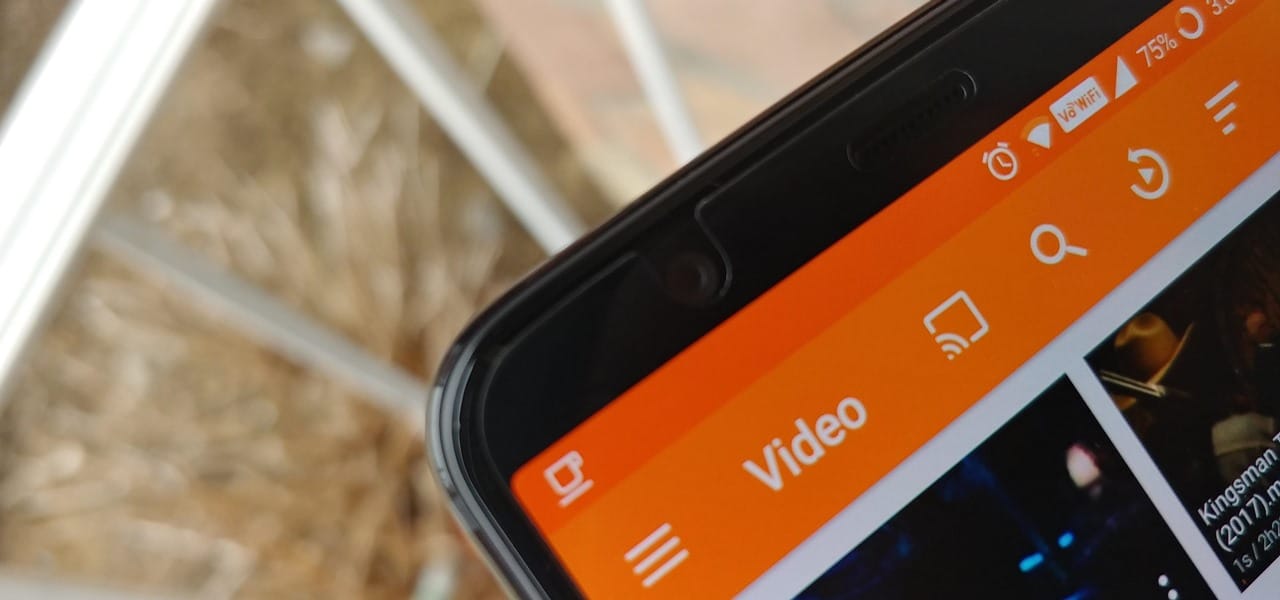
- VLC Media Player – Simple yet powerful local video playback.
- RetroArch – An emulator frontend supporting legitimate classic game backups.
- IPVanish or NordVPN – VPNs that help maintain privacy and bypass regional restrictions.
Installing a VPN isn’t mandatory, but it’s wise if you frequently download or stream from public servers. A VPN encrypts data and helps prevent throttling by your ISP.
7. Staying Safe and Legal
You’ll see a lot of “secret” apps and stores online that promise free sports, new movies, and premium TV. They might sound tempting, but here’s the truth: most of them are built on stolen content. Using them isn’t just a legal gray area—it’s copyright infringement, and it often exposes your Shield to malware, viruses, and serious security risks.
So, how should you use your newly unlocked device? Think of it this way: you now have more control, so use it for cool and safe personalization.
Here are a few great ideas:
Stream apps that aren’t available where you live.
Emulate classic games you already own from consoles like the NES or PS1.
Turn your Shield into a smart home hub by connecting it with other devices.
Try out beta software or hobbyist apps if you’re into tinkering.
Bottom line: this process is about gaining control and exploring new possibilities, not about getting free access to pirated shows or movies. Keep it legal, keep it safe, and get the most out of your device—the right way.
8. Troubleshooting and Maintenance Tips
If an installed app doesn’t work as expected, or you find the Shield behaving strangely after sideloading, here’s what to try:
- Uninstall the problematic app: Go to Settings → Apps → [App] → Uninstall.
- Clear cache: Under Storage settings, clear temporary data that may cause lags.
- Check VPN status: Some apps require a VPN to bypass regional restrictions, while others malfunction when one is active. Toggle accordingly.
- Factory reset as last resort: If nothing works, go to Device Preferences → Reset → Factory data reset. Backup first.
Keeping the Shield updated ensures best performance and security patches. Nvidia regularly publishes firmware updates that may patch potential vulnerabilities or improve app compatibility.
9. Why a VPN Is Often Recommended
You’ll see most guides stress using a VPN when you sideload. Here’s why in plain English: it’s about your privacy.
When you download an app from a website instead of the official Play Store, you’re connecting directly to that site’s server. You’re exposing your IP address—which is like your internet mailing address—to whoever runs it. A VPN like IPVanish, ProtonVPN, or ExpressVPN solves this by encrypting your connection and hiding your real IP address. Think of it as putting your internet traffic in a private, sealed tunnel.
This is extra useful if you’re streaming from smaller apps or using public Wi-Fi. It’s a smart layer of protection.
One important note: A VPN is a privacy tool, not a magic wand. It doesn’t make illegal streaming or downloading okay. It protects your data; it doesn’t erase your responsibility to follow the law. Use it to stay safe, not to hide questionable activity.
Final Takeaways
So, what have you done? You’ve unlocked a new level of freedom with your Nvidia Shield. By turning on developer options and enabling sideloading, you’ve opened the door to:
Advanced media players
Custom productivity tools
Powerful game emulators
And so much more
But more power means more responsibility. It’s up to you to use this flexibility wisely—stay on the right side of the law, keep security in mind, and protect your privacy.
You’ve now got the keys to turn your Shield into the ultimate, customized entertainment hub. You didn’t just tweak a setting; you took control of your device, and you did it the right way. Nice work.
To visualize the whole process, it looks like this:
Settings → Device Preferences → About → Build (press 7 times) → You are now a developer → Install Downloader → Allow Unknown Sources → Install your apps → (Use a VPN) → Enjoy your upgraded Shield.